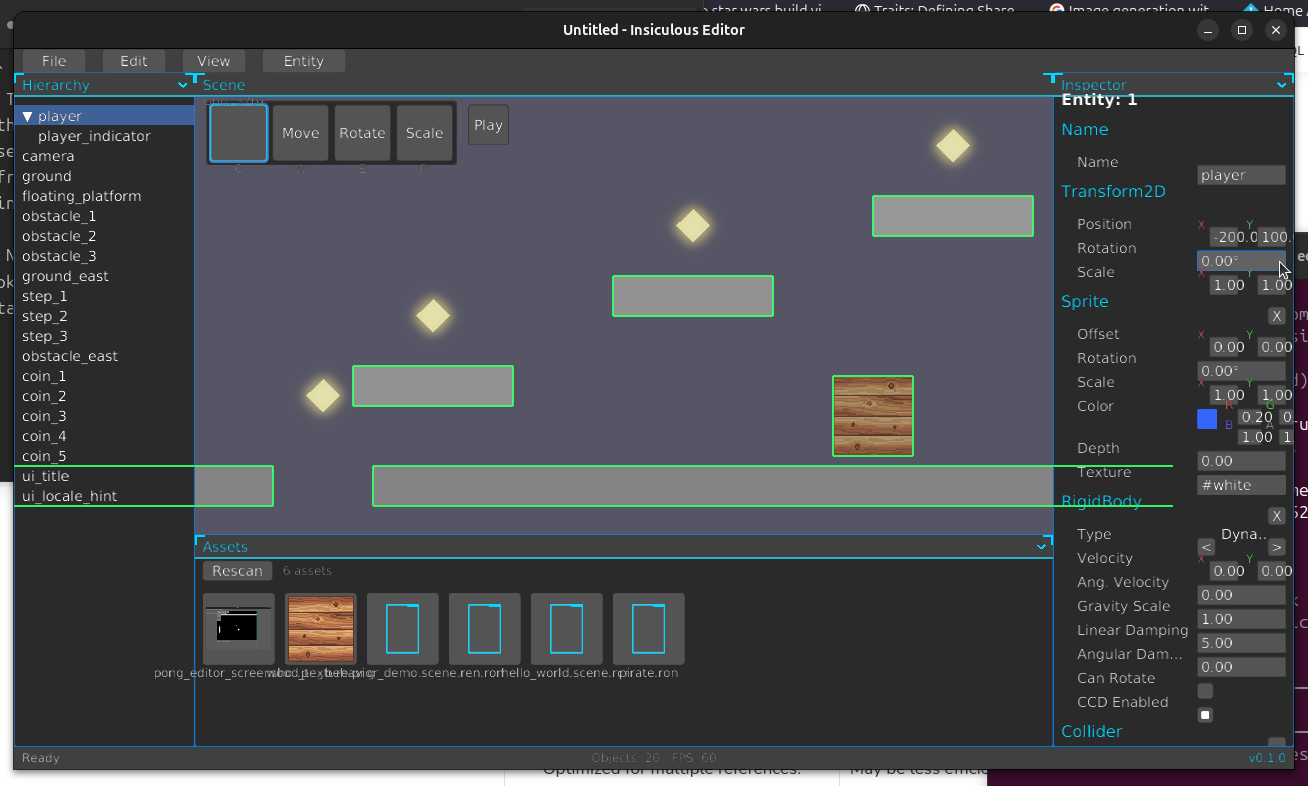
Using the editor
Saving
Projects and scenes are saved in this browser. When you press Ctrl+S to save a scene, modified files are committed locally. The bundled samples provide a starting point; if you ever wish to discard local edits, use the Reset to bundled button to restore the original version. To keep building outside the browser, Export project and drop the archive onto a clone of the game template, a game whose gameplay is exactly what you just exported.
Scripts
Data projects attach gameplay scripts written in Rhai. Select any script from the project to view and edit its code in the Scripts panel. Pressing Ctrl+S inside the script editor verifies syntax and saves the script directly to browser storage; runtime errors surface during Play mode.
Rust games in the editor
The six Rust games open inside this same editor, each at its own page — pick one from the Rust games group in the Project select. Those pages are layout only: the entities are live and editable, the rules are compiled into the game, and nothing you change there persists.
Command API
The editor exposes its command interface to the browser through WebAssembly. You can inspect entities and scene state using commands like list in the Command panel of the dock.
Technical notes
Browser storage is IndexedDB, held by this origin and never uploaded. Rendering is WebGPU; the editor is the engine’s own editor compiled to WebAssembly.
Keyboard shortcuts
- Ctrl+P — play / pause; F5 — play; Ctrl+Shift+P — stop
- Ctrl+S — save the scene to this browser (inside the Scripts panel, saves the script); Ctrl+Shift+S — save as
- Q / W / E / R — select / move / rotate / scale tool
- Space + drag or middle drag — pan; scroll — zoom; + / − / 0 — zoom in / out / reset
- F — frame the selection; Home — reset the camera
- Click — select; Shift — add; Ctrl — toggle; Ctrl+A — all; Esc — cancel
- Arrows — nudge the selection (Shift ×10); F2 — rename
- Ctrl+Z / Ctrl+Shift+Z — undo / redo; Ctrl+D — duplicate; Ctrl+C / Ctrl+X / Ctrl+V — copy / cut / paste
- Delete or Backspace — delete the selection
- G — grid; S — snapping; C — collider outlines